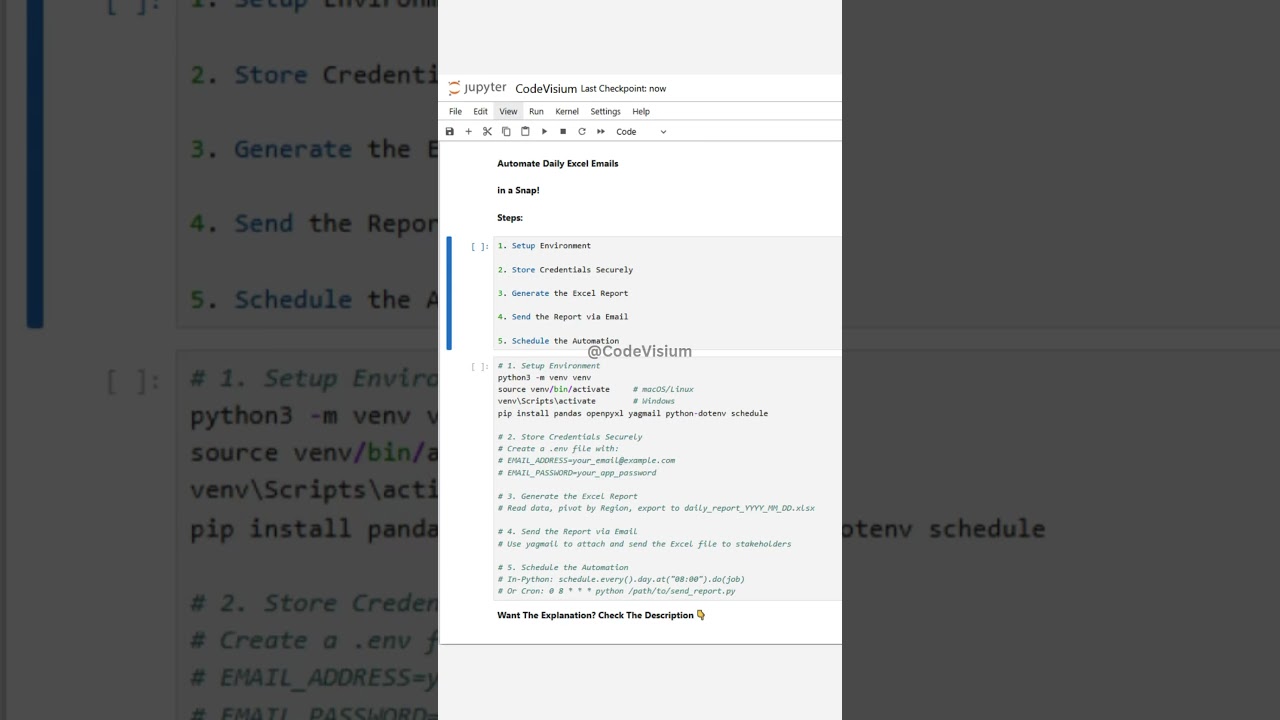
Welcome to CodeVisium’s Lightning-Fast Automations! This tutorial will walk you through every single step—no prior experience required—to build a Python script that automatically generates an Excel report and emails it every morning at 8 AM. Let’s break it all down:
1. Setup Environment
What is a virtual environment?
A virtual environment is a self-contained folder where Python installs packages just for this project. It keeps your project’s libraries separate from system Python and other projects.
Commands:
python3 -m venv venv
Creates a directory named venv with its own Python interpreter.
source venv/bin/activate # macOS/Linux
venvScriptsactivate # Windows
“Activates” the virtual environment so that when you run pip install, packages go into venv instead of your system.
Install packages:
pip install pandas openpyxl yagmail python-dotenv schedule
pandas: For reading, manipulating, and summarizing tabular data.
openpyxl: To write data into an Excel (.xlsx) file.
yagmail: Simplifies sending emails via SMTP in Python.
python-dotenv: Loads environment variables (like passwords) from a .env file.
schedule: A tiny library to run functions on a timer (like cron).
2. Store Credentials Securely
Why not hard-code your password?
Hard-coding exposes your credentials if your code is ever shared.
Use a .env file:
In your project root, create a file named .env.
Add two lines:
EMAIL_ADDRESS=your_email@example.com
EMAIL_PASSWORD=your_app_password
App Passwords: If you use Gmail with two-factor authentication, generate an App Password (not your regular login password).
3. Generate the Excel Report
Load your data:
import pandas as pd
df = pd.read_csv(“sales_data.csv”)
Replace “sales_data.csv” with your source file or database query.
Summarize:
summary = df.groupby(“Region”)[“Revenue”].sum().reset_index()
This groups rows by the “Region” column and sums the “Revenue” for each region.
Export to Excel:
from datetime import datetime
report_name = f”daily_report_datetime.now():%Y_%m_%d.xlsx”
summary.to_excel(report_name, index=False)
The filename includes today’s date (e.g., daily_report_2025_05_31.xlsx) so you keep each day’s report separate.
4. Send the Report via Email
Setup yagmail:
import os, yagmail
from dotenv import load_dotenv
load_dotenv() # Reads .env file
yag = yagmail.SMTP(os.getenv(“EMAIL_ADDRESS”), os.getenv(“EMAIL_PASSWORD”))
Compose & send:
subject = f”Daily Sales Report – datetime.now():%Y-%m-%d”
contents = [
“Hi team,”,
“Please find attached today’s sales summary report.”,
report_name,
“Best regards,”,
“CodeVisium Automation”
]
yag.send(to=”stakeholder@example.com”, subject=subject, contents=contents)
Replace “stakeholder@example.com” with your actual recipients (you can supply a list).
5. Schedule the Automation
In-Python (cross-platform):
import schedule, time
def job():
report = generate_report()
send_email(report)
schedule.every().day.at(“08:00”).do(job)
while True:
schedule.run_pending()
time.sleep(30)
This loop checks every 30 seconds; at 08:00 AM it runs your job.
System Cron (Linux/macOS):
0 8 * * * /usr/bin/python3 /path/to/send_report.py
Open your crontab with crontab -e and add that line.
Windows Task Scheduler:
Create a Basic Task that runs python C:pathtosend_report.py every day at 8:00 AM.
By following these step-by-step instructions, you’ll have a fully automated system that generates and emails your daily report without lifting a finger—perfect for teams, managers, or yourself to stay on top of key metrics. Implement this pattern across other tasks—social media posts, database backups, or alerts—and you’ll truly achieve Lightning-Fast Automations with CodeVisium.
#Automation #Python #Excel #EmailAutomation #SMTP #Cron #DataScience #Productivity #CodeVisium #Workflow

コメント